Wrong Image When Sharing Your Website? How to Fix Open Graph Tags
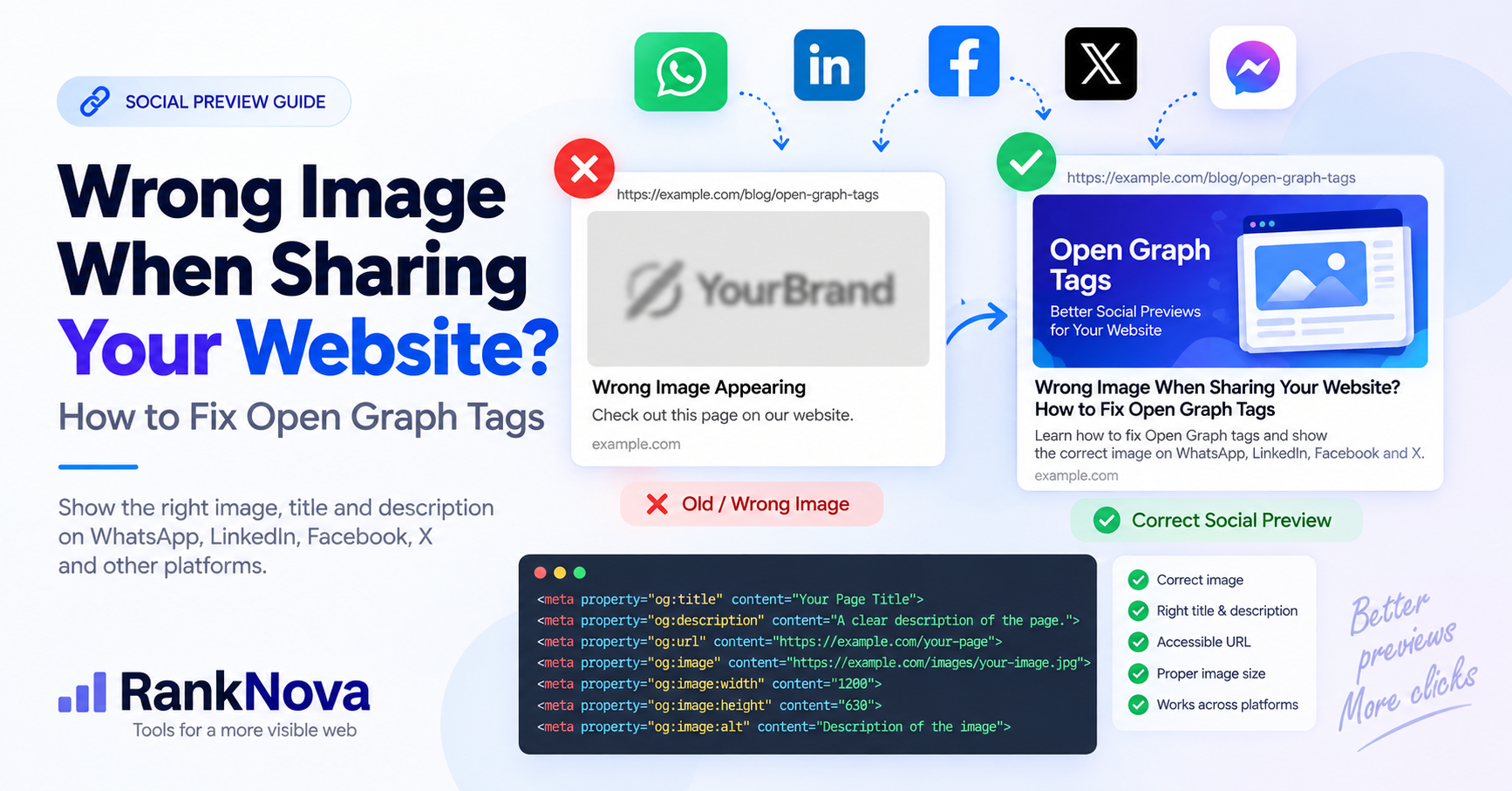
You paste your website link into WhatsApp, LinkedIn, Facebook, or another platform. Instead of showing the correct page image, the preview displays an old logo, an unrelated banner, a low-quality thumbnail, or no image at all.
The page may look correct when opened in a browser, but social platforms do not always build link previews from the visible page. They usually examine metadata in the page's HTML, particularly its Open Graph tags.
When that metadata is missing, incorrect, inaccessible, or cached, the platform has to guess what it should display.
What Is a Social Link Preview?
A social link preview is the card generated when someone shares a web address. Depending on the platform, it may contain:
- A preview image
- Page title
- Short description
- Website or domain name
- The destination URL
A clear preview helps people understand the page before opening it. A broken or irrelevant preview can make a legitimate website look unfinished or unreliable.
The preview is especially important when sharing product pages, service pages, blog posts, event pages, property listings, or campaign landing pages.
What Are Open Graph Tags?
Open Graph tags are metadata elements placed inside the <head> section of a webpage.
The Open Graph protocol defines four basic properties:
og:titleog:typeog:imageog:url
Most websites should also provide og:description, og:site_name, and image details such as alternative text.
A basic setup looks like this:
<head>
  <title>Website Speed Optimization Services</title>

  <meta
    name="description"
    content="Improve your website's mobile speed, Core Web Vitals, and user experience."
  >

  <meta
    property="og:title"
    content="Website Speed Optimization Services"
  >

  <meta
    property="og:description"
    content="Improve mobile performance, Core Web Vitals, and loading speed."
  >

  <meta property="og:type" content="website">

  <meta
    property="og:url"
    content="https://example.com/website-speed-services"
  >

  <meta
    property="og:image"
    content="https://example.com/images/website-speed-services.jpg"
  >

  <meta
    property="og:image:alt"
    content="Mobile website performance analysis dashboard"
  >

  <meta property="og:site_name" content="Example Company">
</head>
When a compatible platform receives the page URL, it can use this information to create the preview.
Why Is the Wrong Image Appearing?
Several problems can cause an incorrect social preview.
Open Graph Tags Are Missing
Without an explicit og:image, the platform may select another image from the page. That could be a logo, decorative background, product thumbnail, author photograph, or unrelated banner.
Add an og:image that directly identifies the image you want people to see.
Every Page Uses the Same Default Image
A website may have one global social image configured for every URL.
This is acceptable as a fallback, but it creates weak previews when individual product pages, articles, or services should have their own images.
A blog post about mobile performance should not show the generic homepage banner. A product page should normally display that product rather than the company logo.
Use page-specific metadata for important pages.
The Image URL Is Relative
This tag may work in some circumstances but can be interpreted inconsistently:
<meta property="og:image" content="/images/social-preview.jpg">
Use the complete public URL:
<meta
  property="og:image"
  content="https://example.com/images/social-preview.jpg"
>
The URL should be accessible without login, cookies, or special request headers.
The Image Is Not Publicly Accessible
A platform cannot create a preview if its crawler cannot retrieve the image.
Common causes include:
- The image returns a
404error - The image requires authentication
- A firewall blocks the platform's crawler
- Hotlink protection rejects the request
- The image is stored on an internal or staging domain
- The server returns an incorrect content type
- The SSL certificate is invalid
robots.txtor CDN rules block access
Open the image URL in a private browser window. If it does not load there, a social crawler may not be able to load it either.
The Platform Has Cached an Older Preview
Social platforms commonly cache page metadata and images. Updating the website does not always update the preview immediately.
LinkedIn confirms that previously shared URLs may continue showing cached information. Its Post Inspector can request a fresh inspection for new posts.
Existing posts generally keep the preview that was created when they were published. Refreshing the URL affects future shares rather than rewriting old posts.
Metadata Is Generated Only After JavaScript Runs
Some applications insert Open Graph tags in the browser after the page loads. Social crawlers may inspect the original HTML without executing the same JavaScript.
The metadata should be present in the server-rendered HTML returned for the URL.
To check this, use a metadata checker or inspect the page source rather than looking only at the browser's live developer tools.
The Image Dimensions Are Unsuitable
Very small, extremely tall, or unusually wide images may be displayed as small thumbnails, cropped unexpectedly, padded, or ignored.
A practical starting point is an image near the common 1.91:1 social-sharing ratio. LinkedIn recommends approximately 1200×627 pixels for its Page post previews, while 1200×630 is widely used for Open Graph images.
Platforms may still crop previews differently across desktop, mobile, messages, and feeds. Keep essential visual content away from the edges.
Multiple Open Graph Images Conflict
A page can contain more than one og:image tag. According to the Open Graph protocol, the first image is preferred when multiple values conflict.
Themes, plugins, marketing tools, and custom code can each insert their own metadata. This may result in several competing tags.
Inspect the final page source and remove duplicate or outdated values where possible.
The Canonical and Open Graph URLs Disagree
The canonical URL may point to one page while og:url points to another.
For example:
<link
  rel="canonical"
  href="https://example.com/services/seo"
>

<meta
  property="og:url"
  content="https://example.com/old-seo-page"
>
This creates conflicting signals.
Use the preferred public page URL consistently across the canonical tag, og:url, sitemap, and internal links.
How to Check Your Open Graph Tags
Use the RankNova Meta Tag Checker to inspect any public HTML page.
The tool reports:
- Page title
- Meta description
- Canonical URL
- Robots directives
og:titleog:descriptionog:imageog:urlog:type- Twitter Card metadata
- Open Graph and Twitter preview simulations
- Missing tags and recommended corrections
Enter the exact page URL that produces the incorrect preview. Testing only the homepage will not identify metadata problems on a product, service, or blog page.
How to Fix the Social Preview
1. Add the Core Open Graph Tags
At minimum, provide:
<meta property="og:title" content="Accurate page title">
<meta property="og:type" content="website">
<meta property="og:url" content="https://example.com/page">
<meta property="og:image" content="https://example.com/image.jpg">
For blog posts, you can use:
<meta property="og:type" content="article">
Add a useful description and image details:
<meta
  property="og:description"
  content="A concise explanation of the page."
>

<meta
  property="og:image:width"
  content="1200"
>

<meta
  property="og:image:height"
  content="630"
>

<meta
  property="og:image:type"
  content="image/jpeg"
>

<meta
  property="og:image:alt"
  content="Description of the image"
>
The width and height values must match the actual image.
2. Create an Image Specifically for Sharing
A social preview image should communicate the page topic at a glance.
Use:
- A clear focal point
- Good contrast
- Simple composition
- Brand-consistent colours
- Limited text
- Sufficient space around important elements
- An image relevant to that exact page
Avoid screenshots filled with tiny text. The preview may be displayed at a much smaller size than the original image.
3. Use a Permanent HTTPS URL
The image should have a stable public URL, such as:
https://example.com/images/blog/mobile-speed-guide.jpg
Avoid temporary upload URLs, expiring signatures, local development paths, and URLs that change every time the website is built.
4. Generate Metadata on the Server
Ensure the Open Graph tags appear in the initial HTML response.
Frameworks such as Next.js, Laravel, WordPress, and other content-management systems provide server-side methods for generating metadata for each page.
For dynamic pages, test more than one URL. Correct homepage metadata does not prove that individual articles or products are configured properly.
5. Add Twitter Card Metadata
X uses Twitter Card metadata for rich previews. A large-image card commonly uses:
<meta name="twitter:card" content="summary_large_image">

<meta
  name="twitter:title"
  content="Website Speed Optimization Services"
>

<meta
  name="twitter:description"
  content="Improve mobile performance and Core Web Vitals."
>

<meta
  name="twitter:image"
  content="https://example.com/images/website-speed-services.jpg"
>

<meta
  name="twitter:image:alt"
  content="Mobile website performance analysis dashboard"
>
You can use the same image for Open Graph and Twitter Cards when the composition works on both previews.
6. Refresh the Platform Cache
After updating the metadata:
- Confirm the new tags appear in the page source.
- Confirm the image URL returns successfully.
- Test the URL with RankNova.
- Submit the URL to LinkedIn Post Inspector for a fresh inspection.
- Use Facebook's Sharing Debugger when troubleshooting Facebook previews.
- Share the link again in a new post or message.
Allow time for platforms that do not provide a manual refresh tool.
Platform-Specific Considerations
LinkedIn may keep an older image or title in its cache. Use LinkedIn Post Inspector to request an updated preview.
LinkedIn notes that refreshing a URL changes new previews. Existing posts retain their previous preview information.
Facebook uses Open Graph metadata extensively. Its Sharing Debugger can show the metadata Facebook detected and request another scrape.
Check the reported image URL, HTTP response, redirects, and warnings.
WhatsApp link previews can use page metadata, but preview appearance and caching behaviour may differ across devices and app versions.
Ensure the page and image are publicly accessible, keep the metadata in the original HTML, and test the link in a new conversation after making changes.
X
Provide Twitter Card tags when the page is likely to be shared on X. Check the card type, title, description, image, and alternative text.
Other Messaging Applications
Applications may support different parts of Open Graph or apply their own image cropping and caching rules.
A correct implementation improves compatibility, but no single preview layout is guaranteed across every application.
Common Open Graph Mistakes
Watch for these recurring problems:
- Missing
og:image - Relative image URLs
- Duplicate Open Graph tags
- One generic image on every page
- Images that return errors
- Metadata visible only after JavaScript runs
- HTTP image URLs on an HTTPS page
- Incorrect canonical or
og:url - Old metadata cached by the platform
- Image dimensions declared incorrectly
- Important text placed near image edges
- Staging-domain URLs used in production
- Missing image alternative text
Do Open Graph Tags Improve Google Rankings?
Open Graph tags are designed for social representation.
They are not a substitute for the HTML title, meta description, canonical tag, structured data, or useful page content.
Their direct purpose is to improve how a page is presented when a compatible platform shares or references it.
A better preview may make a shared link clearer and more attractive to users, but you should not treat Open Graph tags as a guaranteed ranking improvement.
Open Graph Tags in Next.js
For a Next.js website, make sure your Open Graph metadata is generated in the server response rather than added only after client-side JavaScript executes.
With the Next.js App Router, metadata can be defined using the Metadata API or generated dynamically for individual pages.
For example:
export const metadata = {
  title: 'Website Speed Optimization Services',
  description: 'Improve your website performance and Core Web Vitals.',
  openGraph: {
    title: 'Website Speed Optimization Services',
    description: 'Improve mobile performance and loading speed.',
    url: 'https://example.com/website-speed-services',
    images: [
      {
        url: 'https://example.com/images/website-speed-services.jpg',
        width: 1200,
        height: 630,
        alt: 'Mobile website performance analysis dashboard'
      }
    ]
  }
};
For dynamic blog posts, products, or service pages, generate page-specific metadata instead of using the same title and image everywhere.
After deployment, inspect View Page Source and confirm the expected Open Graph tags are present in the returned HTML.
A Practical Testing Checklist
Before publishing an important page, verify:
- The HTML title describes the page
- The meta description is accurate
- The canonical URL is correct
og:titleis presentog:descriptionis presentog:typeis appropriateog:urlmatches the preferred URLog:imageuses an absolute HTTPS URL- The image loads publicly
- The actual image dimensions suit social previews
og:image:altdescribes the image- Twitter Card tags are present when needed
- Metadata is available in the initial HTML
- Old previews have been refreshed where possible
Test Your Meta Tags with RankNova
A correct social preview begins with correct metadata.
Instead of manually searching through your page source, you can use the RankNova Meta Tag Checker to inspect your page's SEO and social metadata.
The tool can help you review your title, description, canonical URL, robots directives, Open Graph tags, Twitter Card metadata, and preview information.
Test the exact URL that is showing the wrong image rather than testing only your homepage.
Final Thoughts
When the wrong image appears after sharing your website, changing the visible image on the page may not solve the problem.
Start with the metadata that social platforms actually inspect.
Check your og:image, make sure the image URL is publicly accessible, verify that metadata appears in the initial HTML, remove conflicting tags, and account for platform caching.
For important products, services, articles, and landing pages, use page-specific social metadata rather than relying entirely on a generic site-wide image.
Finally, test before sharing.
Use the RankNova Meta Tag Checker to inspect your Open Graph and Twitter Card information and identify missing or conflicting tags before publishing your link again.
FAQ
Frequently Asked Questions
Quick answers pulled directly from this article for easier reading and better sharing previews.
Why does my website show the wrong image when I share the link?
Common causes include a missing or incorrect og:image tag, cached social metadata, duplicate Open Graph tags, an inaccessible image URL, unsuitable image dimensions, or metadata that is added only after JavaScript executes.
What is og:image?
og:image is an Open Graph metadata property that specifies the image a compatible platform should use when generating a social link preview for a webpage.
What size should an Open Graph image be?
A 1.91:1 aspect ratio is a practical starting point for social sharing. Images around 1200×630 pixels are widely used, although individual platforms can crop and display images differently.
Why is LinkedIn still showing my old website image?
LinkedIn can cache metadata and preview images. After updating your page, confirm the new metadata is live and use LinkedIn Post Inspector to request a fresh inspection for future shares.
Why is WhatsApp showing the wrong link preview?
WhatsApp may be using cached metadata or may be unable to retrieve the intended image. Check that your Open Graph tags are present in the initial HTML and that the og:image URL is publicly accessible over HTTPS.
Should every page have a different og:image?
Not necessarily, but important products, services, articles, landing pages and other shareable content generally benefit from page-specific preview images. A site-wide image can still be used as a fallback.
Can og:image use a relative URL?
Using an absolute HTTPS URL is safer and more reliable for social crawlers. For example, use https://example.com/images/social-preview.jpg rather than /images/social-preview.jpg.
Do social crawlers execute JavaScript?
Crawler behavior varies by platform, so important social metadata should not depend on client-side JavaScript execution. Open Graph tags should ideally be available in the initial HTML response.
Do Open Graph tags improve Google rankings?
Open Graph tags are primarily designed to control social link presentation. They should not be treated as a direct Google ranking tactic or as a replacement for standard SEO metadata, structured data, and useful page content.
How can I check my website's Open Graph tags?
Use RankNova's Meta Tag Checker to inspect the exact page URL. It can help review Open Graph tags, Twitter Card metadata, title, description, canonical URL, robots directives, and social preview information.
How do I fix Open Graph tags in Next.js?
Generate Open Graph metadata on the server using Next.js metadata features and provide page-specific values for dynamic content. After deployment, check View Page Source to confirm that the expected tags are present in the initial HTML.